Viewing or Adding Notes to a Number Detail Record
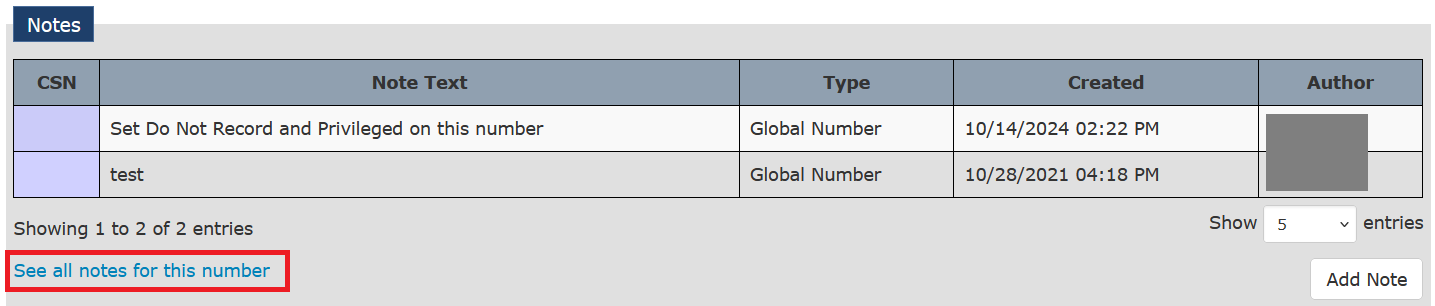
The ENFORCER® is configured to automatically add notes to a Number Detail Record when certain actions occur, such as a called party requesting a block on a phone number. These notes provide a historical record of system-related events, call-related events, and user actions on the number. These notes become a permanent part of the Number Detail Record and are displayed at the bottom of the record.
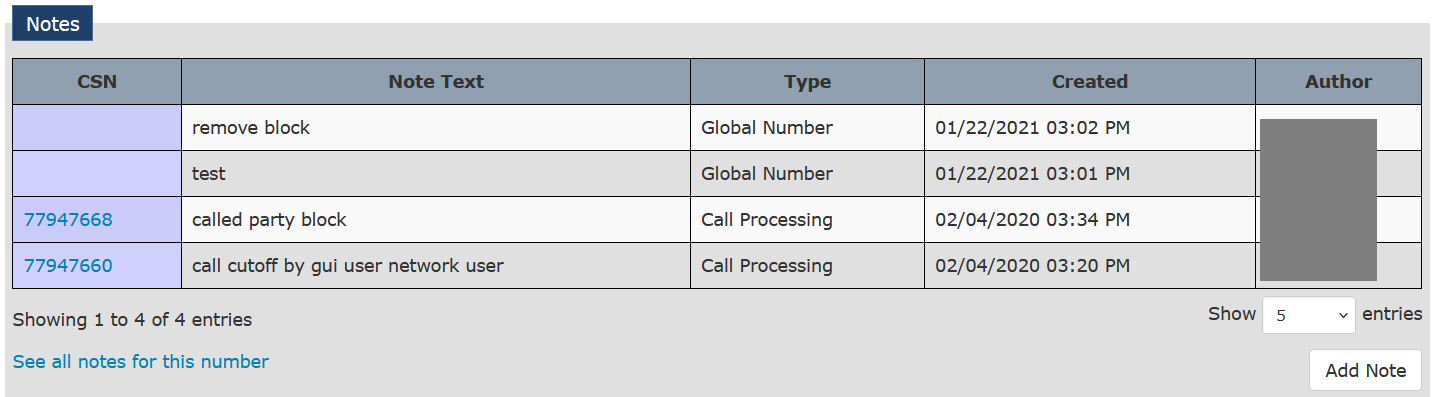
You can create a note to include any details that may be helpful for another ENFORCER® user who may access the Number Detail Record later. Reasons for creating a note may include specific information about the called party number or a reason why certain settings have been changed. Any notes you enter and save become a permanent part of the Number Detail Record and can be a helpful reference for other users. When you enter a note, The ENFORCER® automatically adds the date/time and your user name to the note, displayed in the Created and Author columns as shown above.
You can manually add notes to a Number Detail Record in either of two ways, as discussed in the following sections.
Adding a Note from the Global Number Search Page
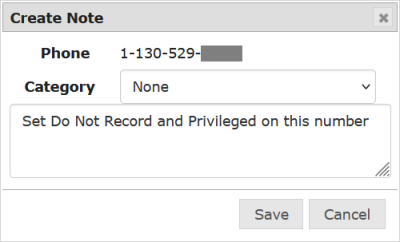
Click  in the Action column for the desired phone number, enter the note text, and click Save as shown in the following example.
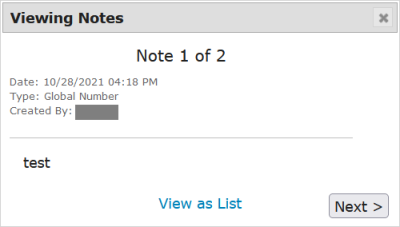
After you save a note,  is displayed in the Action column to indicate that a note has been saved for the number. To view the note, click .
Adding a Note from the Global Number Edit Page
At the top of the Global Number Edit page or in the Notes pane at the bottom of the page, click Add Note, enter the desired note, then click Save as shown in the following example.

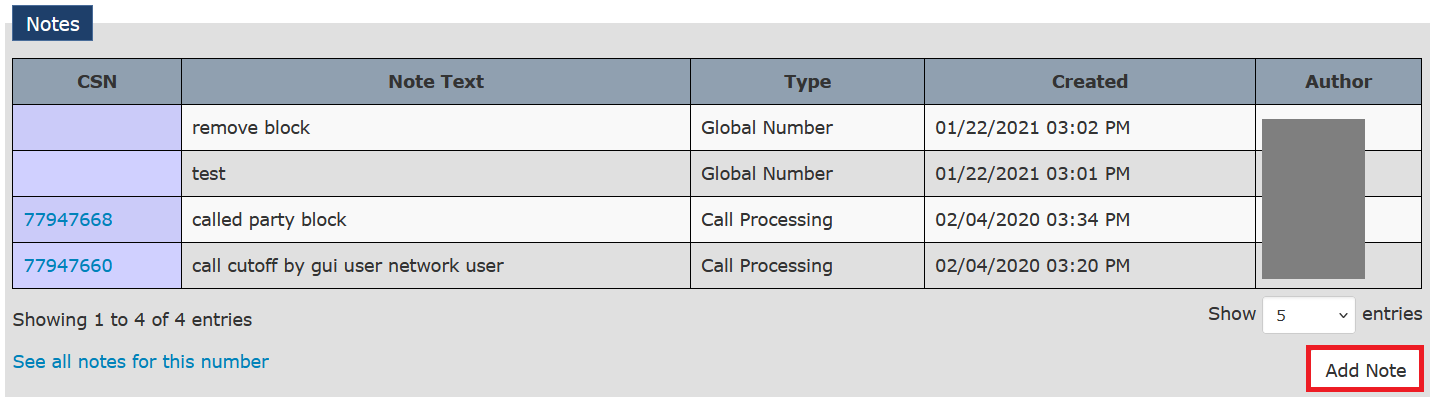
After you click Save, the note and its associated text are added as a line item in the Notes pane as shown in the following example. If many notes exist for the number, you may need to click See all notes for this number to view them.