Customizing Information for Search Results
The Call Records function lets you add up to 56 columns of information to the search results. Additionally, you can change the order of displayed call records according to an information category by sorting a column.
Adding Columns to the Search Results
Click Change Columns to display a dialog box that allows you to add or delete columns of information in the search results.
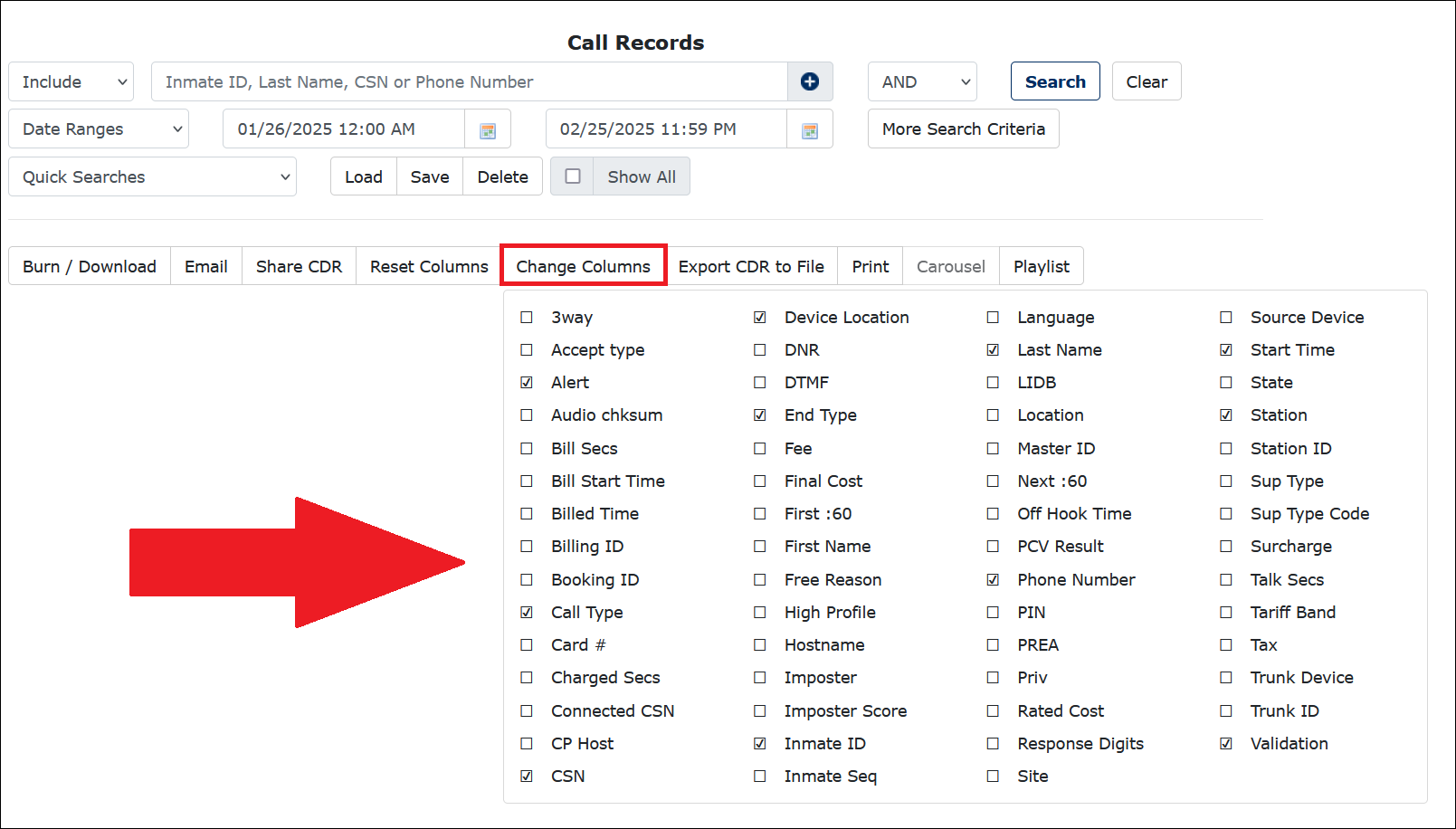
When you first open the dialog box, a default set of checkboxes is pre-selected based on the most frequently used call information. After you add or delete columns, the search results are redisplayed immediately with the revised column headings. In the Change Columns box, columns are listed alphabetically from top to bottom, starting in the left column. After you have made changes, you can click Reset columns to return to The ENFORCER® default settings.
Since The ENFORCER® can display so much information about inmate calls, you may need to use the scroll bar at the bottom of the search results screen to scroll right and view additional columns.
Sorting Columns
The default sort for Call Records search results is by the start time for the call displayed in the Start Time column, beginning with the most recent call that occurred during the specified date range.
When you click on the text of any sortable column, the call records in the search results are re-sorted alphabetically or numerically according to the values in the column you selected. To change the sorted results from ascending to descending order, click on the down or up arrow displayed in the column heading.

Changing Number of Call Records Displayed
You can change the number of call records displayed on a page by changing the value in the call records per page dropdown list at the bottom of the search results screen. Depending on the number of call records displayed, you may need to scroll down to view this list. If you have several additional columns displayed, you may need to scroll to the right to view this list.

The default value is 10. You can change this value before or after performing a Call Records search.
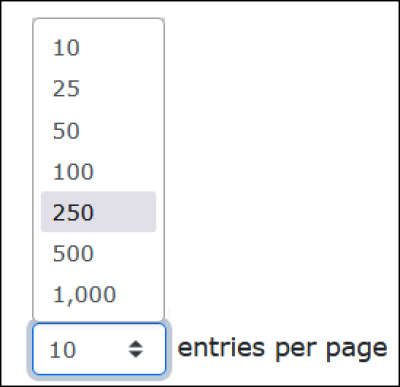
If you change the value after searching, click Search again to display the requested records per page.