Emailing Call Recordings
After performing a Call Records search, you can attach call recordings in mp3 format to an email message using the Email button.

How to send call recordings by email
- Perform a search based on desired criteria.
- In the
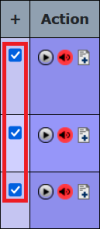
 column on the Call Records search results page, select the checkbox for each call recording you want to attach to an email message. To select all recordings in the displayed list, click above the checkbox column on the left side of the screen.
- Click Email.
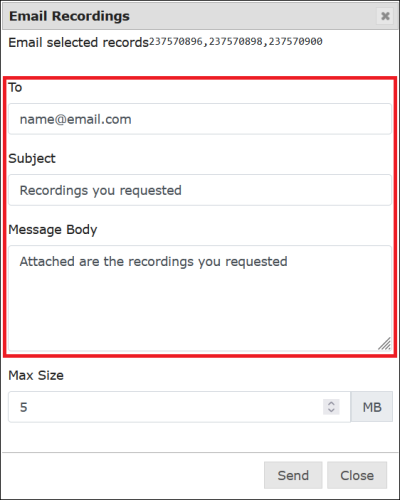
- A popup window is displayed. This window lists the CSNs of all recordings you selected. Enter the email address of the recipient. Enter a subject and body text for the email message.
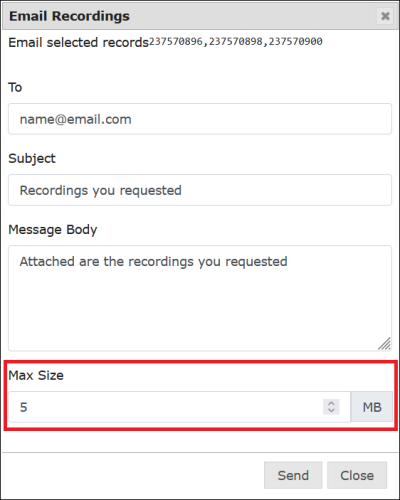
- If you have set a maximum size on attachments to the emailed message, this maximum size is displayed in the Max Size (MB) field. If you want to change it manually, enter a different maximum size in this field.
- Click Send. Each call recording will be attached to the email message as a separate mp3 file.