Sharing Selected Call Records with Another User
The Share CDR feature lets you share selected call records with another user, who can log in to The ENFORCER® remotely to access those call records. This feature eliminates the need to burn call records or recordings to a CD to share with another ENFORCER® user, such as an outside investigator.
Some ENFORCER® users are restricted from viewing call records based on their user setup. However, The ENFORCER® Site Administrator can set up a user to allow a limited view of call records for a specific called party number when granted by a higher-level user. The Share CDR button lets you share call records for calls made to a called party number with one or more users set up with this limited view.
The Share CDR feature lets you share selected call records with another user, who can log in to The ENFORCER® remotely to access the same call records.

A Site Administrator or a user with the cdr_share access code set up for their role can share CDRs with limited users.
For a remote user (a user located offsite from the facility) to access the system, the IP address of the remote computer must be defined to The ENFORCER® installation. This user account must also be set up with permission to share call records and created to enable the remote user to view call records and listen to call recordings.
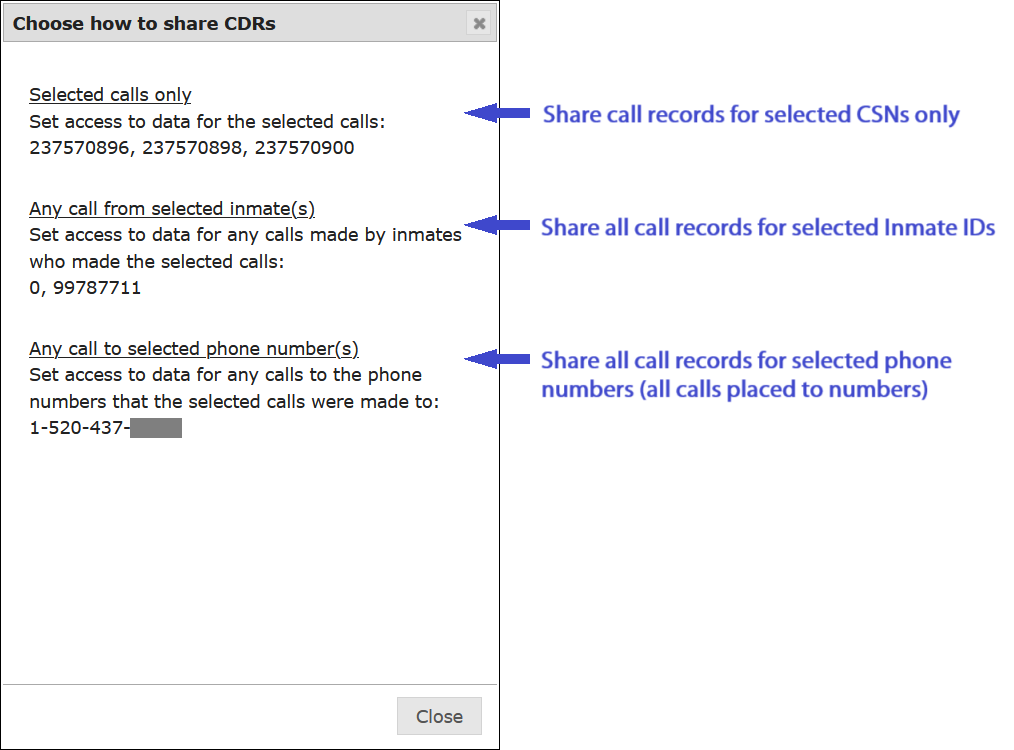
The following example shows the three optional methods of sharing call records.
You can also share all call records for a specified inmate with a selected user. This task is performed from the Inmate Detail page.
How to share Call Records with an outside user
- Perform a search based on desired criteria.
- In the
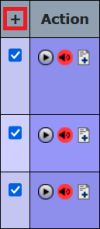
 column, select the checkbox for each call record you want to share. To select all call records in the displayed list, click .
- Click Share CDR.
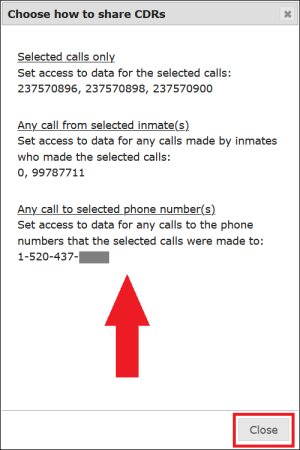
- The Choose how to share CDRs window displays a list of the three optional selection criteria. These should be self-explanatory based on your selected criteria for the Call Records search. Select the desired option and click Close.
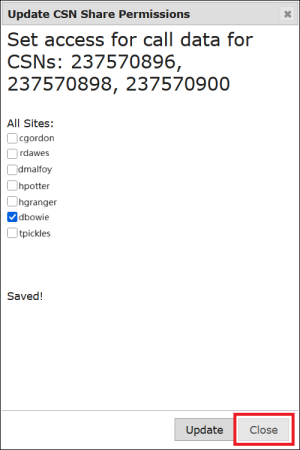
The Update CSN Share Permissions dialog box is displayed. This window is pre-populated with any user IDs that have already been granted access to the CSNs.
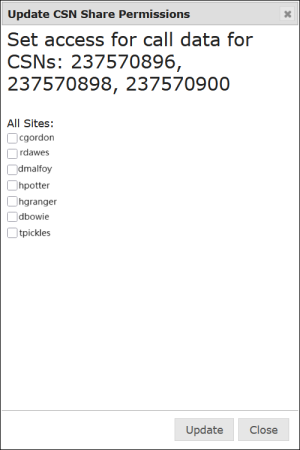
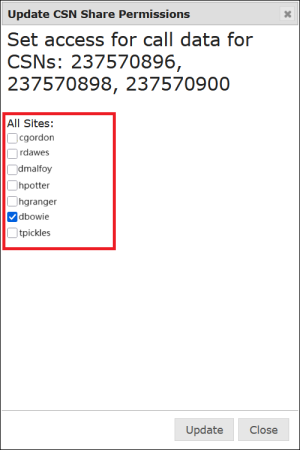
- Select one or more users who you want to access the call records by checking the checkbox next to each username. If one more user is currently checked for whom you want to revoke permission to view the call records, deselect the checkbox next to their username.
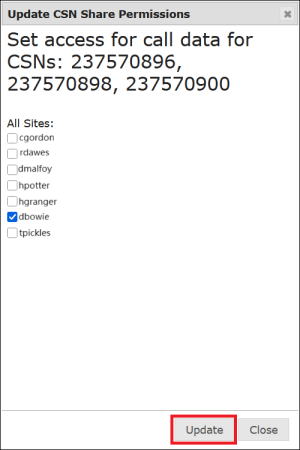
- Click Update. The selected user(s) will then be able to view the call records you selected and listen to the call recordings.
- Click Close. The selected user(s) will now be able to view the call records and listen to the recordings for the call records you selected.