Debit Accounts
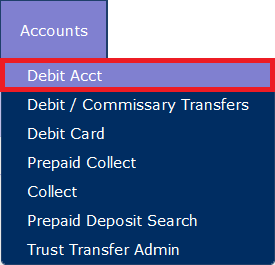
To access the Debit Account page, select Debit Acct under the Accounts tab.
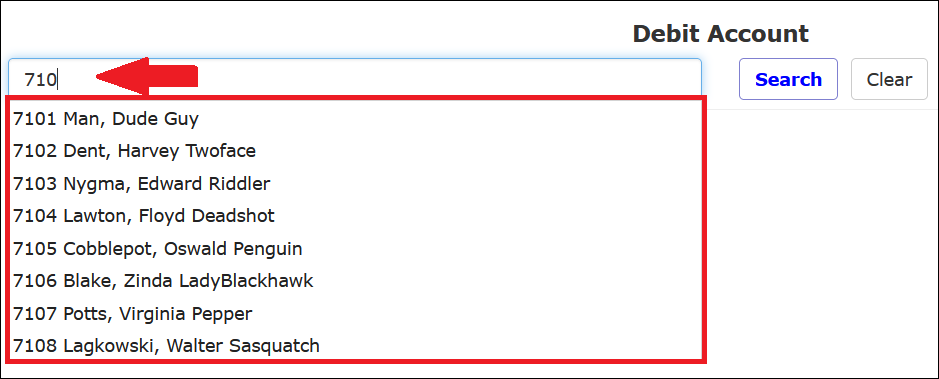
To locate the desired Inmate Debit Account, type in the first few characters of the inmate’s last name or Inmate ID number. A dropdown list will display all inmates whose last name or Inmate ID begins with the characters you entered. To select the desired account, click on the inmate from the displayed list.

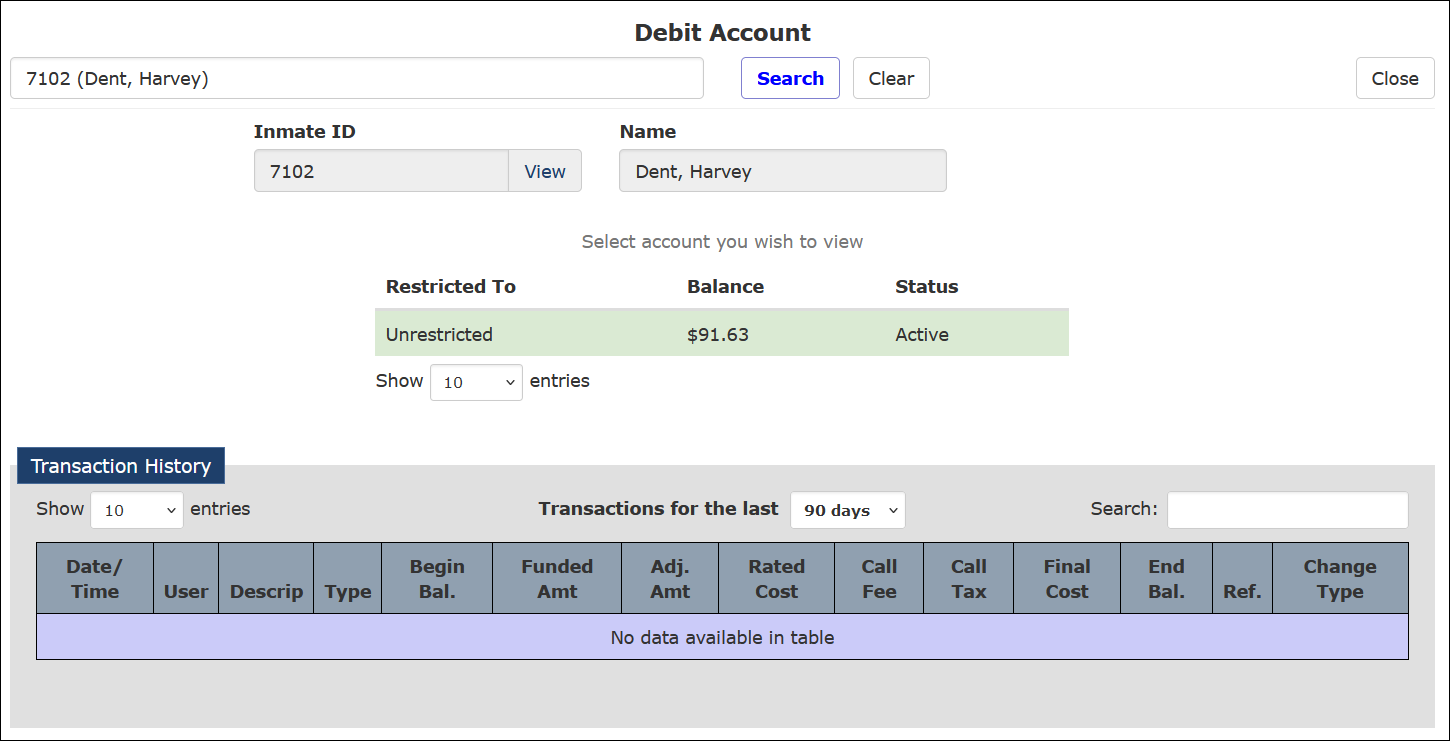
After you access an existing Inmate Debit Account, The ENFORCER® displays the Debit Account page as shown in the following example.
Adjusting a Debit Account Balance
Although account funds are deposited automatically into an Inmate Debit Account, several manual adjustments can be made to an account. These adjustments are described in the following table.
Debit Account Adjustment Types
| Type | Definition | Usage |
|---|---|---|
| Commissary Credit/Refund | Adjustments made from an inmate’s Debit account to his/her Commissary account | Add or subtract funds |
| Commissary Deposit | Deposits made from an inmate’s Commissary account to his/her Debit account | Add funds |
| Copy Fees | Fee to provide copy services to the inmate at the inmate’s request | Subtract funds |
| Excess Money | Funds previously subtracted from Inmate Debit account which need to be returned | Add funds |
| ICS Telco Credit: Dropped/ Courtesy | Adjustments made to credit any call/audio issues | Add funds |
| Inmate Trust Ledger | Deposit funds from Inmate Trust account | Manually force a deposit from the inmate’s Trust account |
| Medical Co-Pay | Inmate co-pay for medical services received while in the facility | Subtract funds |
| Postcard Debit Refund | Refund of inmate’s Call Center Debit account after release | Subtract funds |
| Property Damage | Subtract funds from Inmate Debit account to compensate for broken/destroyed property | Subtract funds |
| Restitution | Facility- or court-imposed payment amount | Add funds at facility’s expense |
| Test Account Credit/Debit | Adjustments made to cover ICS testing | Add funds |
How to locate an Inmate Debit Account and make an account adjustment
- To locate the desired Inmate Debit Account, type in the first few characters of the inmate’s last name or Inmate ID number. A dropdown list displays all inmates whose last name or Inmate ID begins with the characters you entered.
- To select the desired account, click on the inmate from the displayed list. The Inmate Debit Account page is displayed.
- In the Adjust Funds pane, enter the dollar amount of the adjustment in the Amount field. Be sure to include a minus sign (–) in front of the entered dollar amount if the adjustment is intended to subtract funds from the account.
- Select an account adjustment type from the Type dropdown list. Use the table above to select the appropriate adjustment type.
- In the Description field, provide additional detail on the adjustment being made.
- Click Adjust Funds.
- If you need more information about the inmate, click View next to the Inmate ID field.
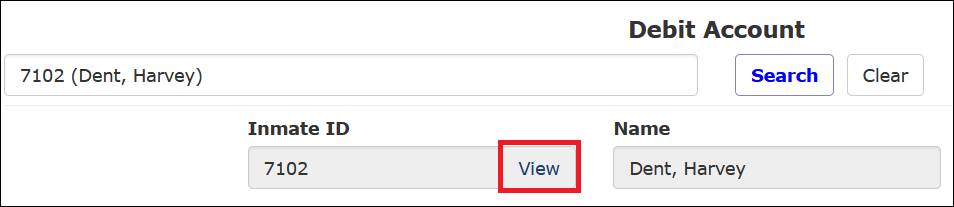
When you click View, The ENFORCER® opens the Inmate Detail page for the inmate. Click Back to return to the Inmate Debit Account page.
Viewing Call Records
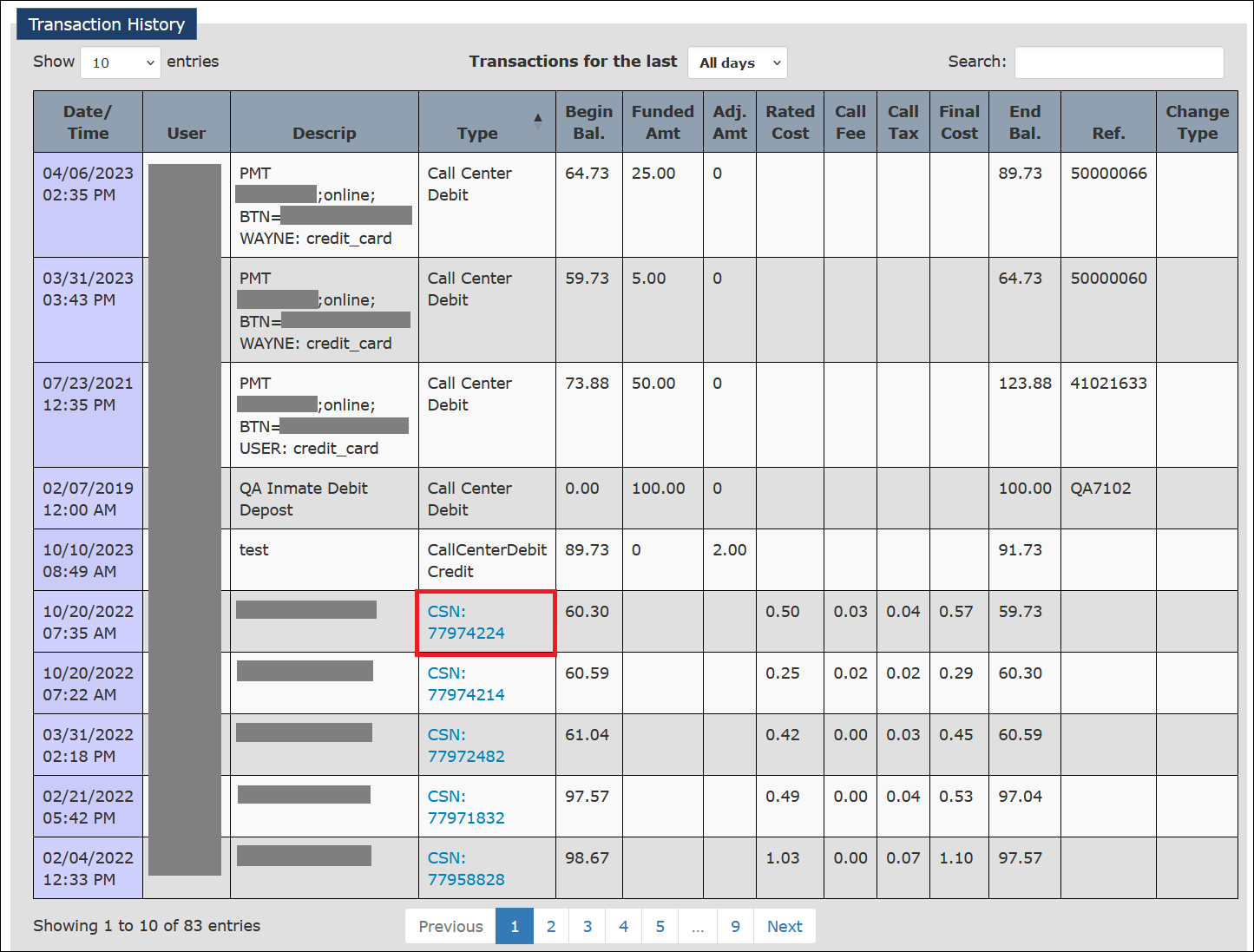
From a displayed Transaction History, you can access the call records for a specific call made against the Inmate Debit Account. To access a call record for a specific call, click a CSN in the Type column of the Transaction History. This action will open the Call Records function and display the selected CSN's call record.
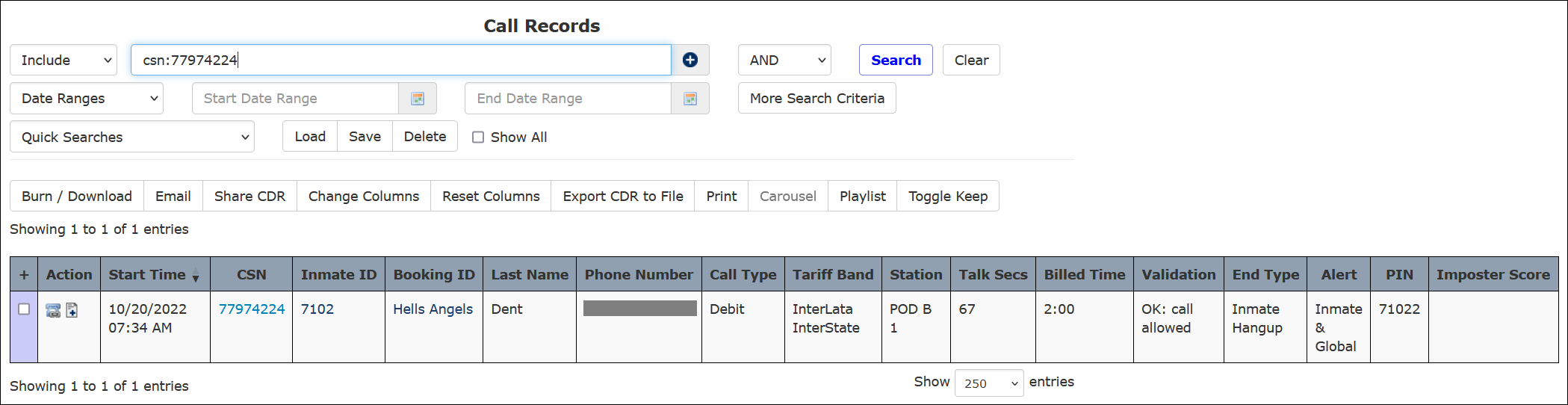
For more information on using the Call Records function to search for and interpret call records, click here.
Creating a Debit Account with a Restricted Number
You can create a separate Inmate Debit Account that can be used to call a specified called party number only. This type of calling account reserves specific funds for a specific number. Typical usage of this account type would be when an agency allocates funds for an indigent inmate to place calls to an attorney’s office.
Deposits to a Restricted Debit Account can only be made using The ENFORCER® client and cannot be funded by any other method.
To create a Restricted Debit Account, you must enter a valid 10-digit phone number in the blank field and click Create New Restricted Debit Acct as shown in the following example.
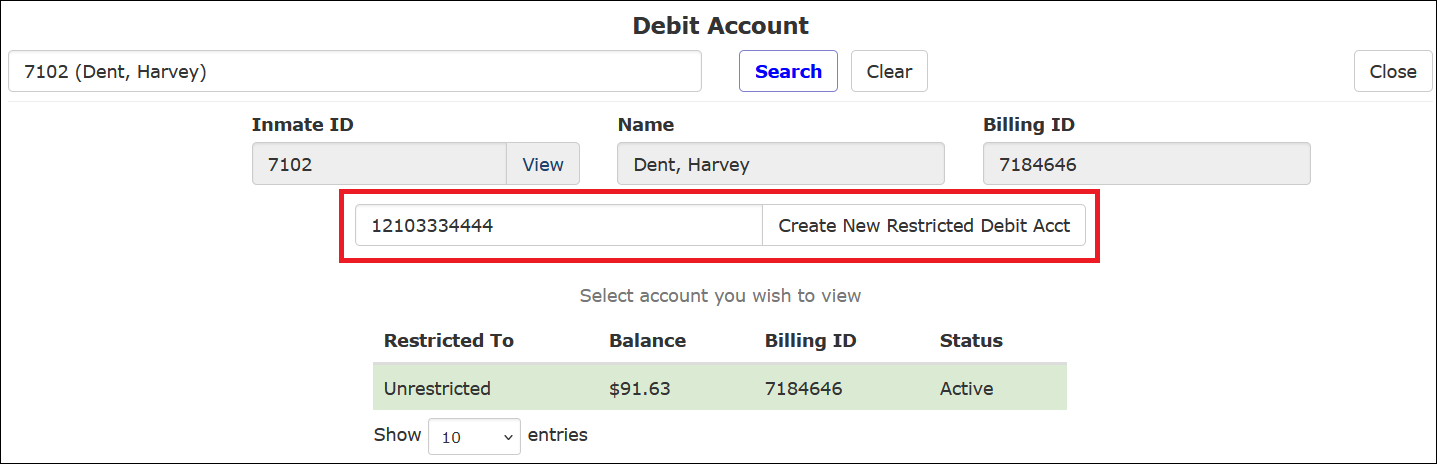
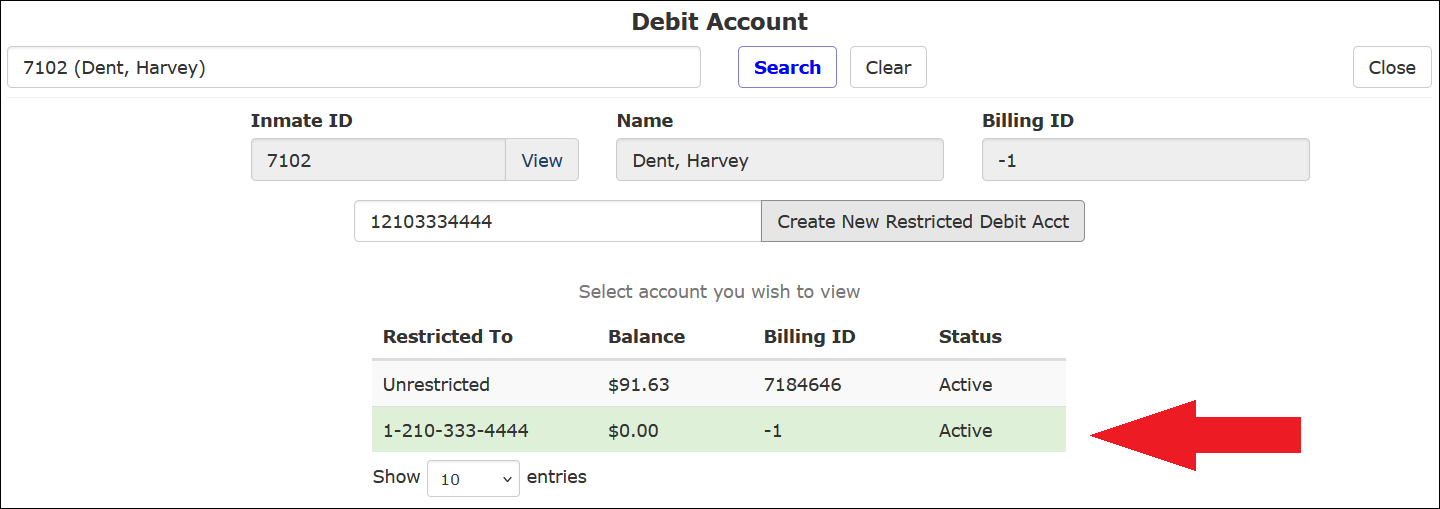
After you create a new Restricted Debit Account, a list of all Inmate Debit Accounts for the inmate, including the Restricted Debit Account, is displayed, as shown in the following example.
How to create and fund a Restricted Debit Account
- Access the Inmate Debit Account for the inmate for which you want to create a restricted account.
- Enter the 10-digit phone number in the Phone Number field.
- Click Create New Restricted Debit Acct. A new Adjust Funds window is displayed and the phone number you entered is automatically populated in the Restricted to field.
- Enter the amount that you want to fund the restricted account with. If you want to transfer funds from the inmate’s unrestricted Inmate Debit Account, select Funds Transfer from the Type dropdown list.
- If you want to deposit funds at the agency’s expense, select Deposit from the dropdown list.
- In the Description field, enter a description to provide additional detail on the adjustment or deposit being made.
- Click Adjust Funds.
- If you selected Funds Transfer, be sure to access the inmate’s unrestricted Inmate Debit Account to subtract the appropriate funds by following the task steps below.
How to transfer funds out of an unrestricted Debit Account to fund a Restricted Debit Account
- Access the Inmate Debit Account for the inmate for which you transferred funds into the Restricted Debit Account.
- Click the unrestricted account from the table to select it.
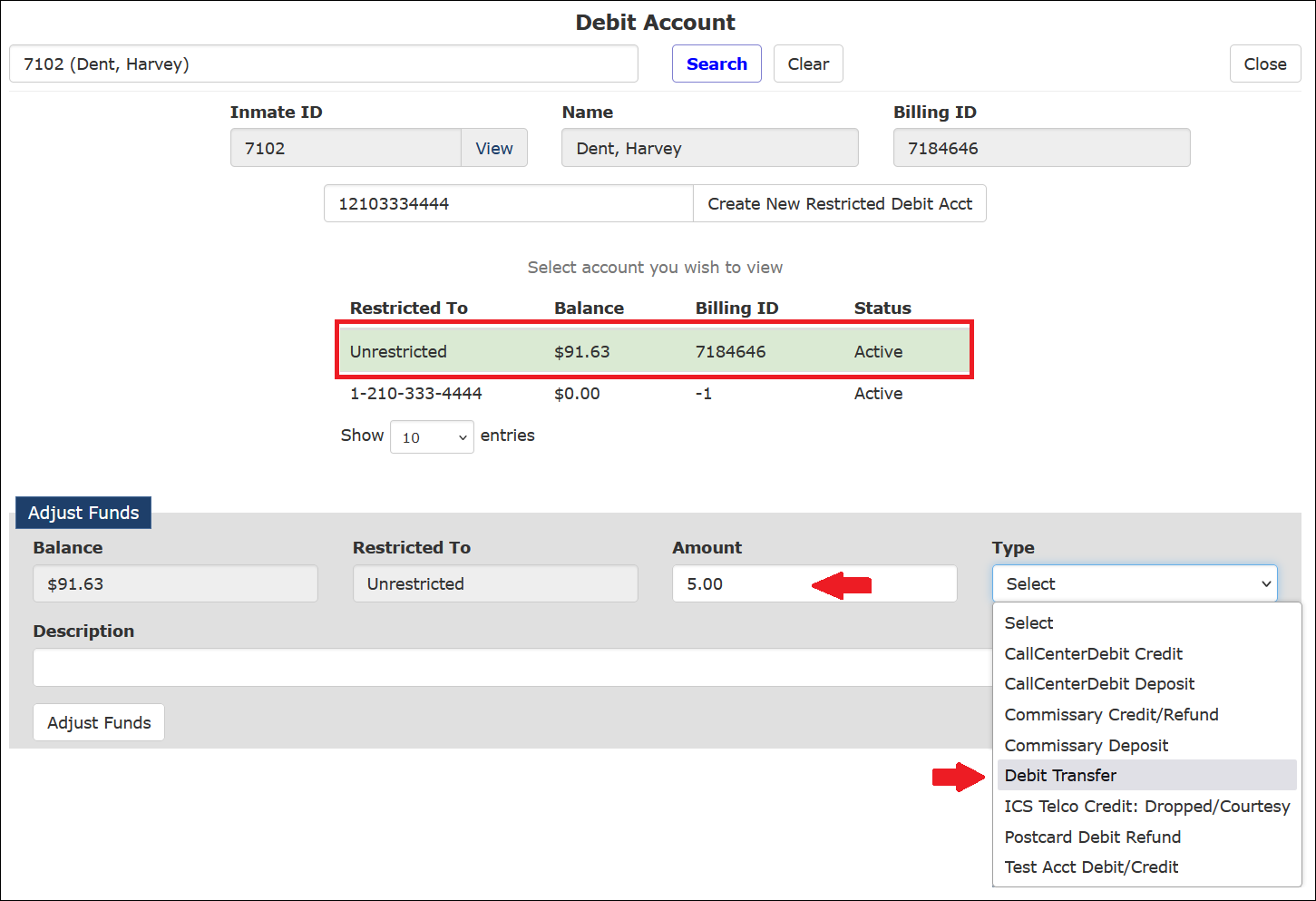
The Adjust Funds window displays the current balance for the selected account. - Enter the amount that you want to subtract from the unrestricted account. This is the same amount that you added to the restricted account. Be sure to include a minus sign (–) in front of the entered amount.
- Select Debit Transfer from the Type dropdown list.
- In the Description field, enter a description to indicate that the funds were transferred to the inmate’s Restricted Inmate Debit Account.
- Click Adjust Funds.