Table of Contents
View Customization Options
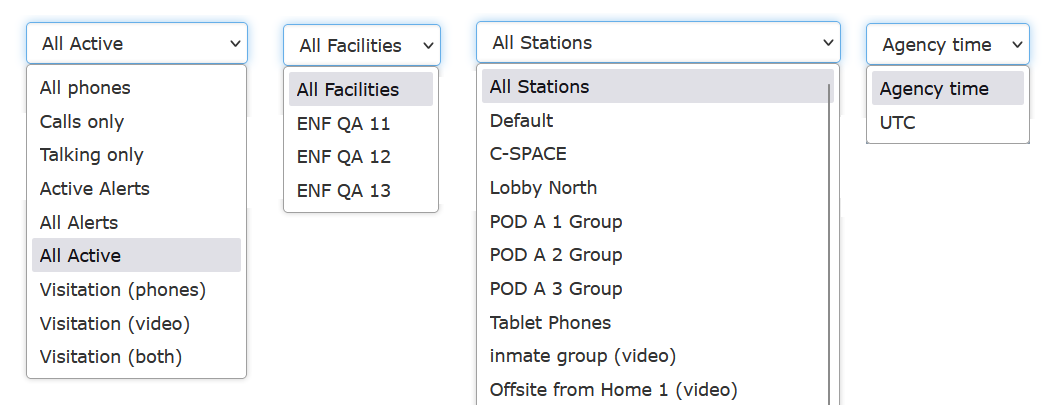
Several dropdown lists are displayed in the View Customization Options pane at the top of The Observer℠ page. These lists let you limit or customize the information displayed in the Call/Station List and Call Details pane, as shown in the following example.
Changing Call Types for Display View
You can use the options in the dropdown list to view several combinations of calls in progress, the last (most recent) calls made from stations, and station usage status.
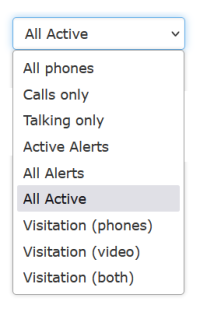
Table: The Observer℠ Call Type Dropdown Options
| Type | Description |
|---|---|
| All phones | List shows all phones or stations defined for inmate use at the agency, facility, or station group. Since this list may be long, you may need to use the scroll bar to scroll through it. |
| Calls only | List shows only phones in use (calls in progress). |
| Talking only | List only calls in progress where the conversation has begun between the inmate and the called party. |
| Active Alerts | List only calls in progress triggering an alert. |
| All Alerts | List shows calls in progress or the most recent call for which an alert has been triggered. The Alert column will show a value of IN (alert defined on Inmate Detail) and/or ‘GN’ (alert defined in Number Detail Record in the Global Numbers library). |
| All Active | List shows all phones that are off-hook, including dialing calls and calls in progress. |
| Visitation | List shows face-to-face visitation sessions in progress or most recent face-to-face visitation sessions only. |
| Visitation (phones) * | List shows non-contact visitation sessions in progress or most recent non-contact visitation sessions only. |
| Visitation (video) * | List shows onsite and offsite video visitation sessions in progress or most recent onsite and offsite video visitation sessions only. |
| Visitation (both) * | List shows all visitation sessions in progress or most recent visitation sessions in progress (both phone visitation and video visitation sessions). |
* These options are displayed on the Call Type dropdown list only at facilities using The Visitor™ visitation management module.
Limiting Call/Station View to a Facility or Station Group
You can limit the information displayed in the Call/Station list to a selected facility, station group, or both by selecting an option from one or both of the following dropdown lists.
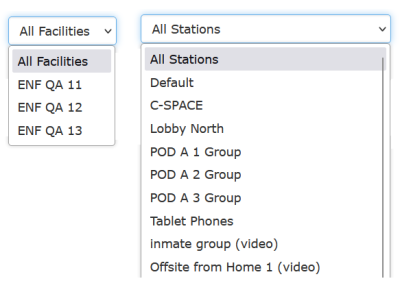
• If your ENFORCER® client is configured for a single facility agency, the Facility dropdown list is not displayed. However, you can still limit the displayed information to a specific station group. If you work at a multi-facility agency and select a facility, the Station Group dropdown list displays only station groups for the selected facility.
• If your facility is running The Visitor™ visitation management module, the Station Group dropdown list will also display defined Visitor Station groups as shown in the example above.
Changing Time Display for Call Details
You can use the options in the dropdown list to change the call Start time and call End time displayed in the Call Details pane for a selected call.
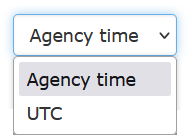
Select Agency time to display the call time at the agency or facility location. Select UTC to display the call start time in Coordinated Universal Time (global time standard).
Adding or Deleting Columns in The Observer℠
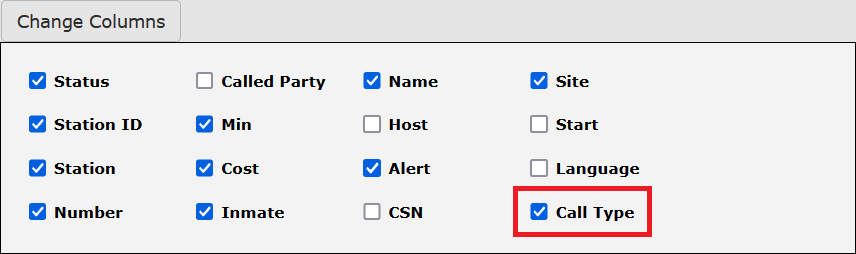
You can click Change Columns to display a dialog box that lets you add or delete columns of information in The Observer℠. When you open the dialog box, a default set of columns is pre-selected based on the most frequently used call information, as shown in the following example.
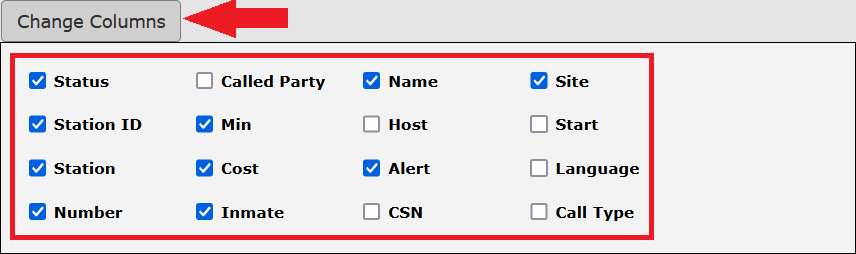
Select the checkbox next to the column heading to add a column that is not displayed by default. After you add or hide columns by selecting or deselecting them, The Observer℠ is displayed immediately with the revised column headings.
The user selected the Call Type checkbox in the following example. Immediately after this selection, The Observer℠ is displayed with the additional Call Type column.